
eSign supports integration with Confluence Automation workflows. For more examples, see our FAQ here: https://support.esign-app.com/edoc/faq/webhook-automation .
Available Webhook Triggers
-
On Start
-
On Approve
-
On Reject
-
On Finalize
-
On Release
-
On Training
Setting up Integration
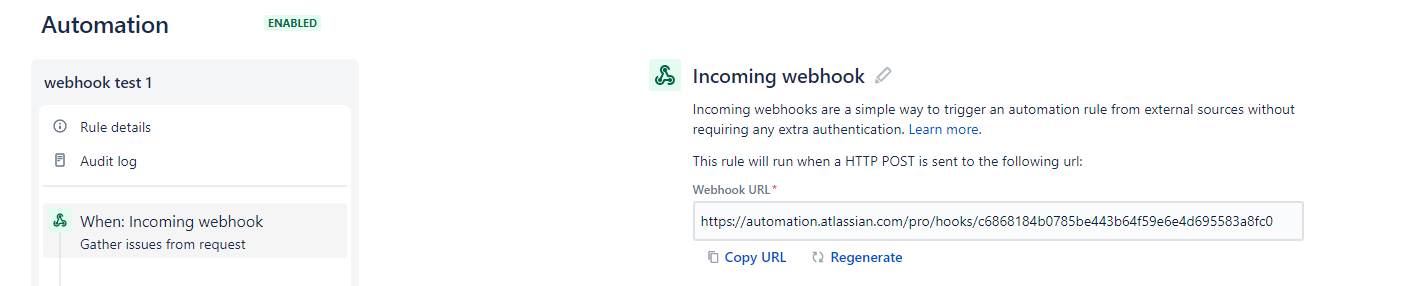
Step 1 - Create Automation Rule - When Incoming Webhook
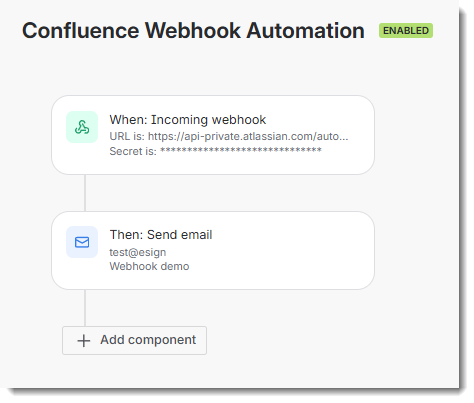
Step 2 - Set Actions to take
Configure automation with 1 or more actions to take, for example Transition to a status.

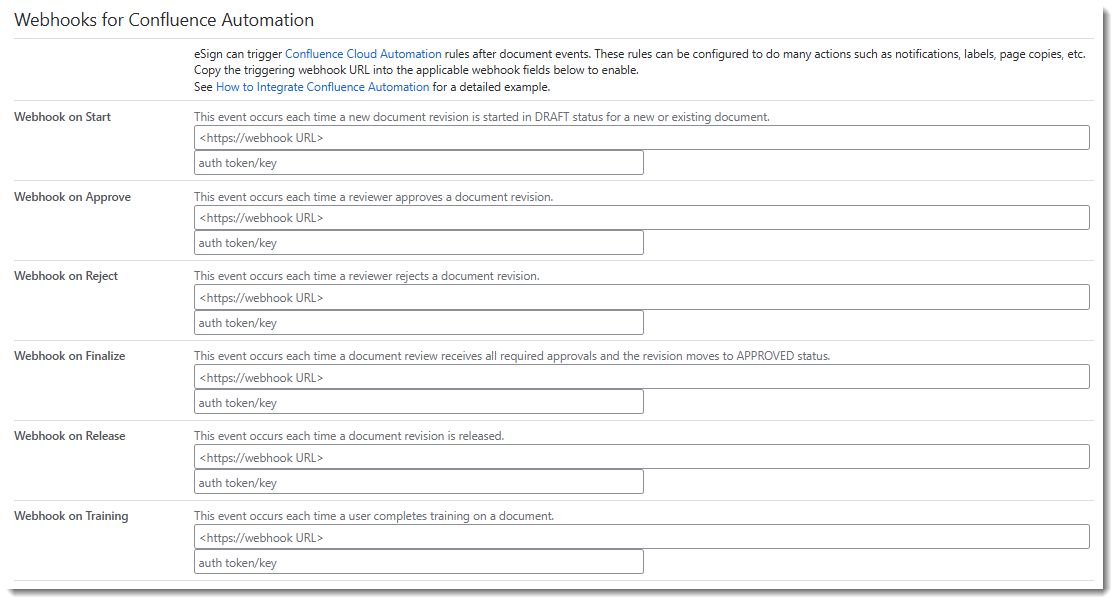
Step 3 - Link Automation Webhook URLs into eSign
Open eSign Document Settings and copy the Confluence Automation URL and secret (auth token) created in Step 1 into the applicable Webhook URL fields.
eSign will trigger these webhook URL’s when the specified event occurs.
Automated Transitions and eSign Signature Validators
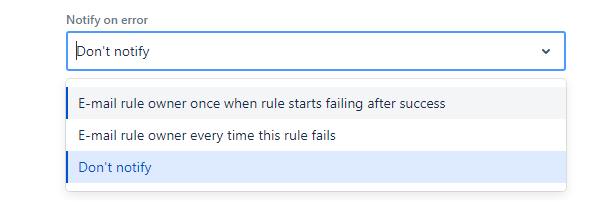
If transitioning the issue to a new status using a workflow transition that includes eSign Signature Validators, Confluence Automation WILL enforce signature validators.
For example: if there is a validator that requires 2 signatures to proceed from status “In Review” to “Approved”, and the Automation webhook is enabled for every Signature Execute event. The following will happen.
-
On the first signature, Confluence automation will be triggered and will attempt the transition. It will be blocked because only 1 signature is present.
-
On the second signature, Confluence automation will be triggers and will again attempt the transition. This time it will complete and the issue will move to the approved Status.
Webhook Data Provided by eSign
Along with the issue ID, eSign sends the following information to Automation with each webhook. This can be useful if the action is conditional on number of pending or completed signatures.
Sample Webhook Data
{
	event: "EXECUTE",
	eventText: "PM Approval (Investigation) signature executed by Sir Winston Churchill.",
	eventUser: "Sir Winston Churchill",
	pendingCount: 3,
	pendingList: "Indira Gandhi - PM Approval, John Hancock - R&D Approval, Unassigned - QA Approval"
	signCount: 1,
	signStatusCount: 1,
	lines: [{
		accountId: "123xxx"
		meaning: "Approval",
		name: "Sir Winston Churchill",
		status: "To Do"
		title: "PM"
		date: "May 16, 2024"
		time: "8:33 PM"
		ts: "2024-05-17T00:33:40Z"
		},
		{ // additional signature lines},
	]
}